måndag 18 januari 2010

Ctrl-n No Longer Opens A New Query in SSMS 2008

Just found the answer to one of those little annoyances, you know. As of version 2008 Sql Server Management Studio does not respond to ctrl-n anymore. It has really bugged me but now I know how to fix it.

Change the keyboard layout to "SQL Server 2000" and then back to "Standard" and that will restore the default keyboard mappings.

http://anotherlab.rajapet.net/2009/03/getting-back-ctrl-n-shortcut-with-sql.html

fredag 15 januari 2010

Delayed Windows Service start, a workaround for a Reporting Services 2008 startup bug.

After a clean installation of MS SQL 2008 with Reporting Services running on a Windows server 2003 machine, you may get the following errors in the event log

Event Type: Error
Event Source: Report Server Windows Service (MSSQLSERVER)
Event Category: Management
Event ID: 107
Date: 2010-01-15
Time: 13:07:15
User: N/A
Computer: VIRTUALWSS
Description:
Report Server Windows Service (MSSQLSERVER) cannot connect to the report server database.


What happens is that the SSRS service gets started to early and tries to connect to the SQL database, which not has entered a state ready for handling connections. However the reporting service retries and starts successfully, despite the errors that have been logged.

The bug is reported to Microsoft SQL team, see ID 377627, but will not be fixed. The supposed solution to the problem is to use Service dependences ; however that does not work for me.

My solution is to create a batch file that after a specified delay starts the reporting services service.

  1. Create a directory named "C:\Scripts".
  2. Run "notepad C:\Scripts\DelayedReportServer.bat " and copy-paste the following into the file:

    @echo off
    ping -n 60 127.0.0.1 >NUL
    net start ReportServer

    This will start the ReportServer service after an 60 seconds delay (ping is used only to generate the delay).
  3. Start a new CMD session.
  4. Now you should create a service named "SQLDelayedReportServer" using the instsrv.exe and srvany.exe tools. Run the following command:
    Instsrv.exe SQLDelayedReportServer "C:\Program Files\Windows Resource Kits\Tools\srvany.exe"
  5. Using regedit.exe, open the key:
    "HKEY_LOCAL_MACHINE\SYSTEM\CurrentControlSet\Services\SQLDelayedReportServer"
  6. Create a new key named "Parameters"
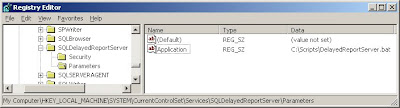
  7. Under the "Parameter" key, create a new String value named "Application". Set its value the batch file you created (C:\Scripts\DelayedReportServer.bat). You should now have something like this:
  8. Now start the Service manager (Start->Administrative tools->Services).
  9. Set the startup type of "SQL Server Reporting Service" to Manual.
  10. Make sure that the startup type of SQLDelayedReportServer is set to Automatic.
  11. Reboot and hopefully will your Report Server start without any errors. If you still get the errors, try increase the delay in "C:\Scripts\DelayedReportServer.bat".

Reference:

How To Create a User-Defined Service

tisdag 24 november 2009

Swedish SQL Server User Group

Just wanted to let you know that the Swedish SQL Server User Group (SQLUG.se) is making a comeback after hibernating for some time. Can't say I was too active the last time around but I'm planning to change that now. They're kicking it off with a meeting featuring Kalen Delaney as a speaker so it should be prove interesting enough.

fredag 20 november 2009

Office 2010 Beta

Microsoft Office 2010 is now out as a public beta. Available at: http://www.microsoft.com/office/2010/en/download-office-professional-plus/default.aspx

Enjoy

torsdag 19 november 2009

SSIS, Oracle and x64

I hope I can spare someone the time I just spent to get this working...

The scenario is as follows:
We have SSIS 2008 installed on a windows 2008 x64 server and want to connect to a Oracle database and the standard drivers doesn't work. Something with version 7.3.3 requiring another set of drivers. Anyway, here is what I did. (You don't have to download the complete 1,87 GB package)

I chose to go through ODBC.

1. Download Instant Client Package - Basic (~40Mb) from Oracle (11g) for both 32 and 64-bit.

x64 found here:
http://www.oracle.com/technology/software/tech/oci/instantclient/htdocs/winx64soft.html
and 32-bits found here:
http://www.oracle.com/technology/software/tech/oci/instantclient/htdocs/winsoft.html

2. At the same location, download Instant Client Package - ODBC (1Mb) for both 32 and 64-bits.

3. I started with the 64-bits install. Create a folder somewhere, i.e. C:\Oracle\InstantClient_64 and extract the files from the basic package (64-bit) to that folder. Extract the ODBC package (64-bit) to the same catalog. Open a commandprompt and run odbc_install. Be sure to start the prompt with administrator privileges.

4. Now we need som .ora files, sqlnet.ora and tnsnames.ora was enough for me. I copied them from another server. You will find lots of examples on the internet if you try searching google. I created a folder C:\Oracle\InstantClient_64\network\admin and placed them there.

5. Now we need to create some enviroment variables. Theese are shared between 32 and 64 bits enviroment. First add to the Path variable the directory you just created (C:\Oracle\InstantClient_64). Second create a new variable called TNS_ADMIN pointing to the location of you .ora files (C:\Oracle\instantclient_64\network\admin)

6. Run the ODBC-administrator with administrator privileges and try creating a system-dsn, it should work. The problem is that BIDS is a 32-bit application, so you can't see the 64-bits odbc sources from BIDS.

7. Create a folder somewhere, i.e. C:\Oracle\InstantClient_32 and extract the files from the basic package (32-bits) to that folder. Extract the ODBC package (32-bit) to the same catalog. Now here is the thing: open a commandprompt from C:\Windows\SysWOW64\cmd.exe and run odbc_install.exe. This installs this as a 32-bits driver.

8. Add the directory containing 32-bits package to the path variable (C:\Oracle\InstantClient_32)

9. Run 32-bits ODBC-administrator from: C:\Windows\SysWOW64\odbcad32.exe and verify that it works.

10. When you create the DSN, make sure you call them the same name in both 32 and 64 bits. Also, clear the username and make sure it's a system dsn.

11. Done.

Hope this will help someone, or me when this is long forgotten.

måndag 9 november 2009

Cisco VPN 64 bit

Cisco VPN client for 64-bit does not yet exist as far as I know. Try the Shrew client, http://www.shrew.net instead. Also, it doesn't cut your internet access.

torsdag 5 november 2009

2009 Pass Summit Day 1

So today was the day the conference started for real. The day started with opening remarks from PASS's President Wayne Snyder and was followed by a keynote by Bob Muglia and Ted Kummert of Microsoft. They talked about SQL Server in general and the upcoming 2008 R2 release in particylar.

The session then were hit and miss. Highlights include Grant Fritchey's     spotlight Best Practices for Working with Execution Plans. While not exactly a BI-related session it was packed of useful information that anyone working with SQL Server will find useful.

The other highlight was hearing Italians Marco Russo and Alberto Ferrari of SQLBI discussing their SQLBI Methodology. In short is a mix between the Inmon and Kimball approaches to data warehousing (see here or google Kimball vs Inmon for a summary). Not only was it thought provoking to hear someone not subscribing 100 % to the Kimball approach, they also managed to combine outlining the differences between Kimbal vs Inmon and describing their methodology with being absolutely hilarious at the same time.

I might write a separate post just about that.